Getting Started
This tutorial will walk you through building and deploying a flow, as well as best practices for testing and debugging flows. While this tutorial uses a prepackaged example flow, these same steps should be used for developing flows specific to your business needs.
After completing this tutorial, you will:
Have a local environment with the
flows-sdklibrary installedPackage an example “IDP Starter” flow into an artifact
Import that artifact into the Hyperscience Platform
Be able to test and debug your flow
The provided “IDP Starter Example” is a basic approach to extracting text from documents. It’s a good starting point for adding process logic, data validation, data formatting, etc. specific to your business’s document extraction process.
Prerequisites
The prerequisites depend on what application version you’re developing for.
Hyperscience v41+: Python 3.12
Hyperscience v39.1-v41: Python 3.11
Legacy versions:
Hyperscience v36-v39: Python 3.9
Hyperscience <=v35: Python 3.7
The example below assumes that you are using bash or zsh for Unix and cmd or PowerShell for Windows. For other terminals, check out the official venv documentation.
Building & Deploying
The examples below assume you are developing for Hyperscience v36. If you are developing for earlier versions, change the version number in idp_starter_flow_v36.py to match your Hyperscience application version (e.g., idp_starter_flow_v35.py).
Create a virtual environment and source it.
python3 -m venv venv
source venv/bin/activate
For Windows
cmd.exepython -m venv venv venv\Scripts\activate.bat
PowerShellpython -m venv venv venv\Scripts\Activate.ps1
Install the
flows_sdkPython package. Contact your CX representative to receive the.whlpackage. The command below should reflect the local path of your package.Example:
pip install "~/Downloads/flows_sdk-1.6.2-py3-none-any.whl"
For Windows
pip install "C:\Downloads\flows_sdk-1.6.2-py3-none-any.whl"Download the IDP Starter Example package, which includes:
idp_starter_flow_v36.pyfile. This is the Python file, built using the Flows SDK, that defines all of the logic for IDP Starter Example flowrelease.zip, which includes a layout for processing W-9 forms. Because W-9s are a structured document it is not necessary to train any models. To learn more about releases, visit our application documentataionform-w9-blank.pdf, a blank Form W-9 used to build the layoutform-w9-sample.png, a W-9 form filled out with handwriting. This image can be submitted to test your flow.
Package
idp_starter_flow_v36.py- the Hyperscience Platform accepts.jsonand.zipfiles:Export to a
.jsonfile:python idp_starter_flow_v36.py > idp_starter_flow.json
Alternatively bundle into a
.zipfile (viahs-flows):hs-flows bundle idp_starter_flow_v36.py -o idp_starter_flow.zip
Upload the produced
idp_starter_flow.jsonto a Hyperscience instance by going tohttps://{hyperscience-url}/flowsand clicking Import Flow.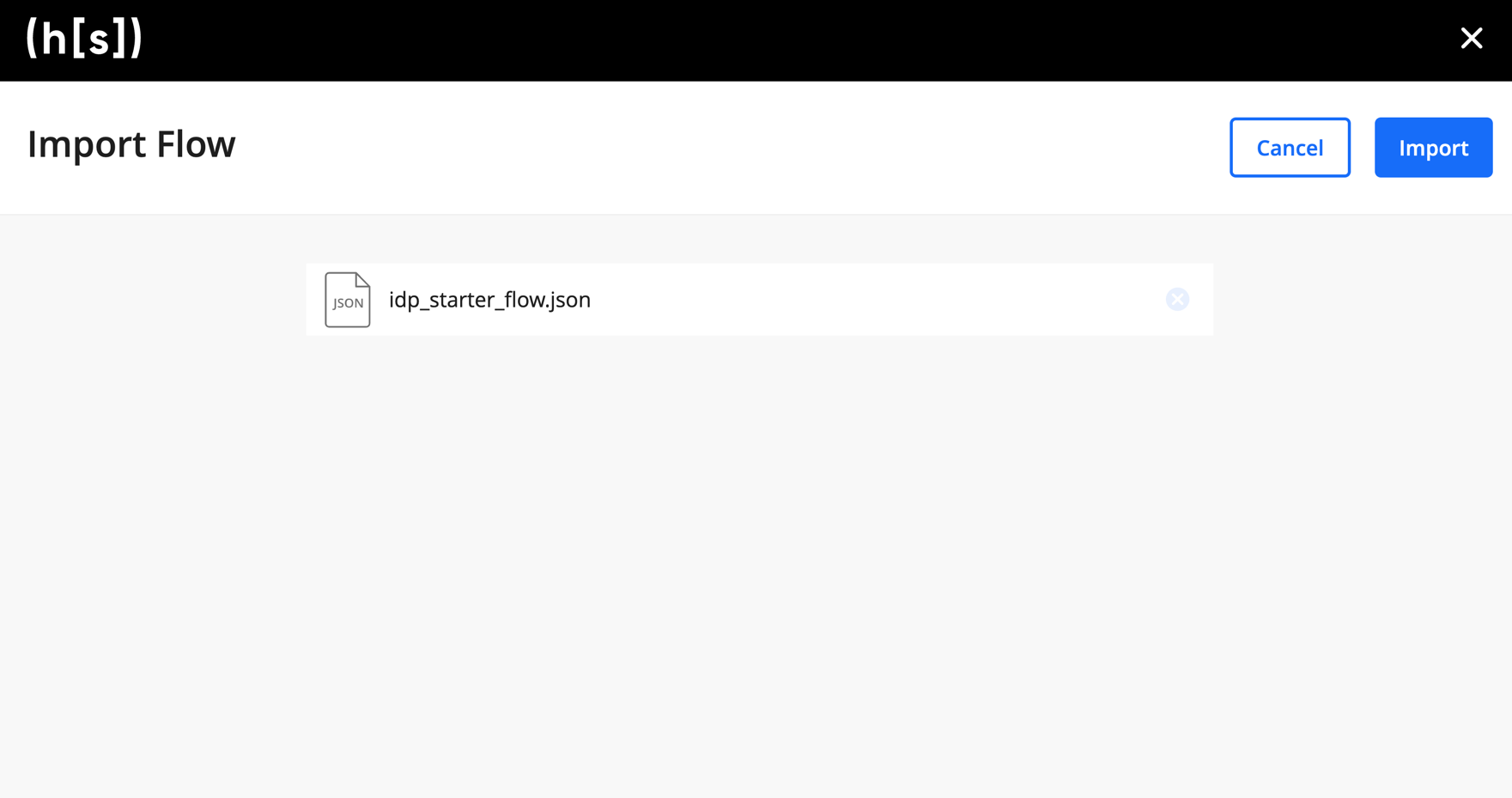
If everything went as expected, you should be redirected to the Flow Studio - you’ve successfully uploaded your first flow to the Hyperscience Platform!
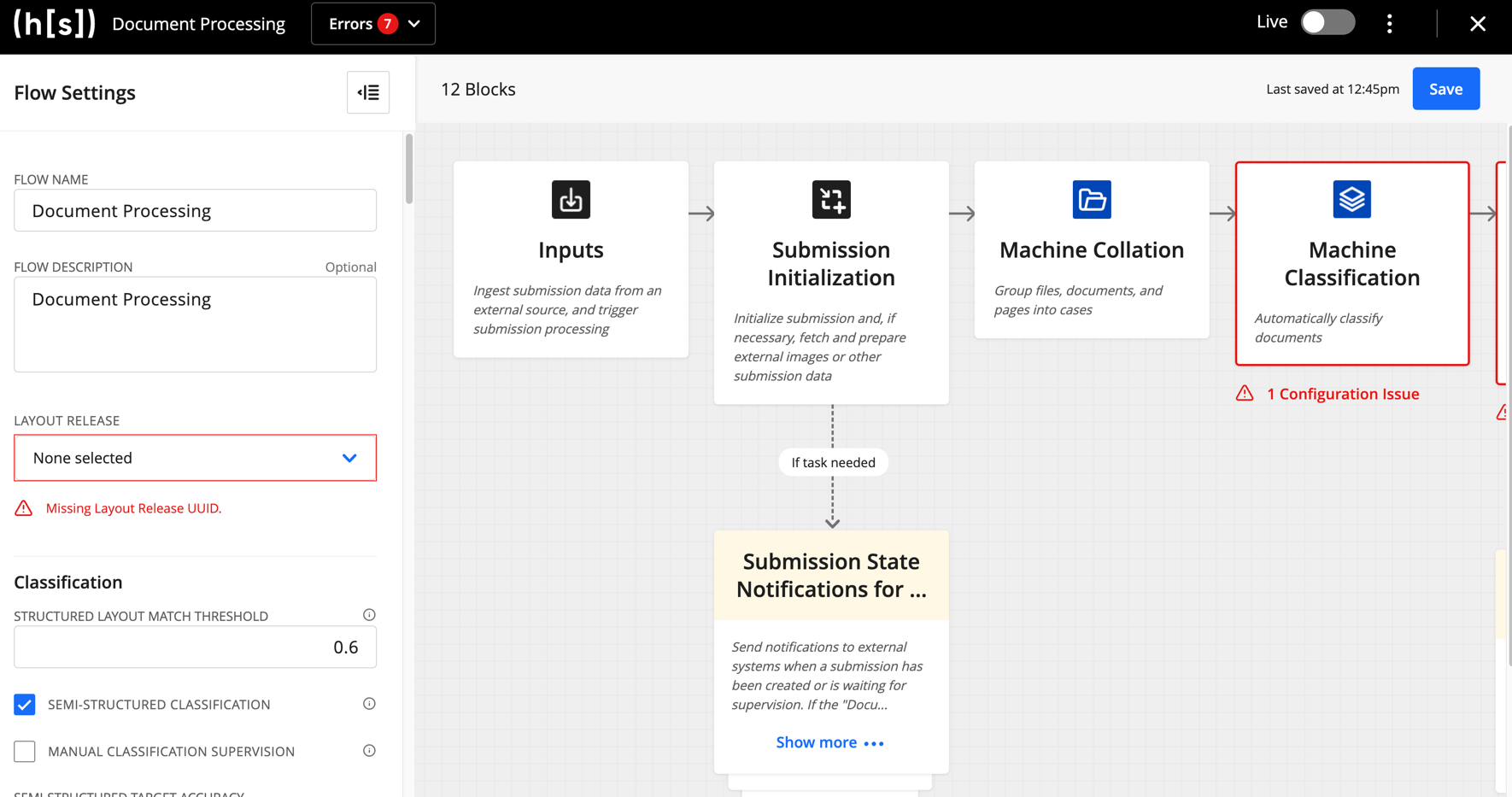
[1] Don’t worry about the Missing Layout Release UUID for now, we’ll fix that in one of the next steps.
Testing & Debugging
The Hyperscience Platform includes tools to help you test and debug your flows. Continuing with the above example, we’ll show you how to submit documents to your new IDP Starter Flow by using the additional materials provided in the package.
Flows need an associated “Release” to process documents. Go to
https://{hyperscience-url}/layouts/releasesand click Add Release. Select Upload Existing and choose therelease.zipincluded in the IDP Starter Example package. After a moment you should see the release uploaded to the Hyperscience Platform.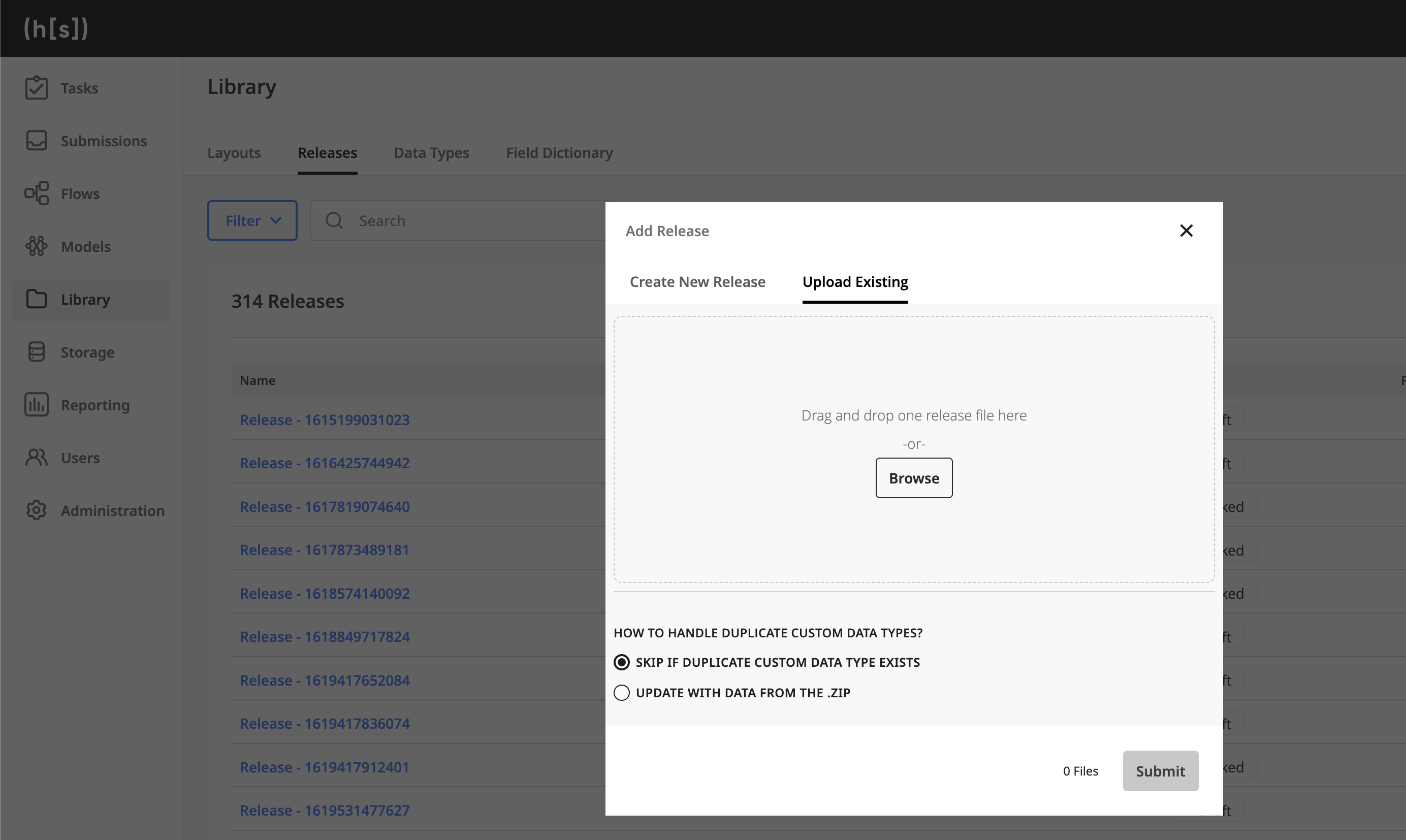
Navigate back to the flow that was uploaded in the previous section by going to
https://{hyperscience-url}/flowsand selecting it.The newly uploaded release should be selectable under
Layout Releasein the Flow Settings panel on the left-hand side of the page.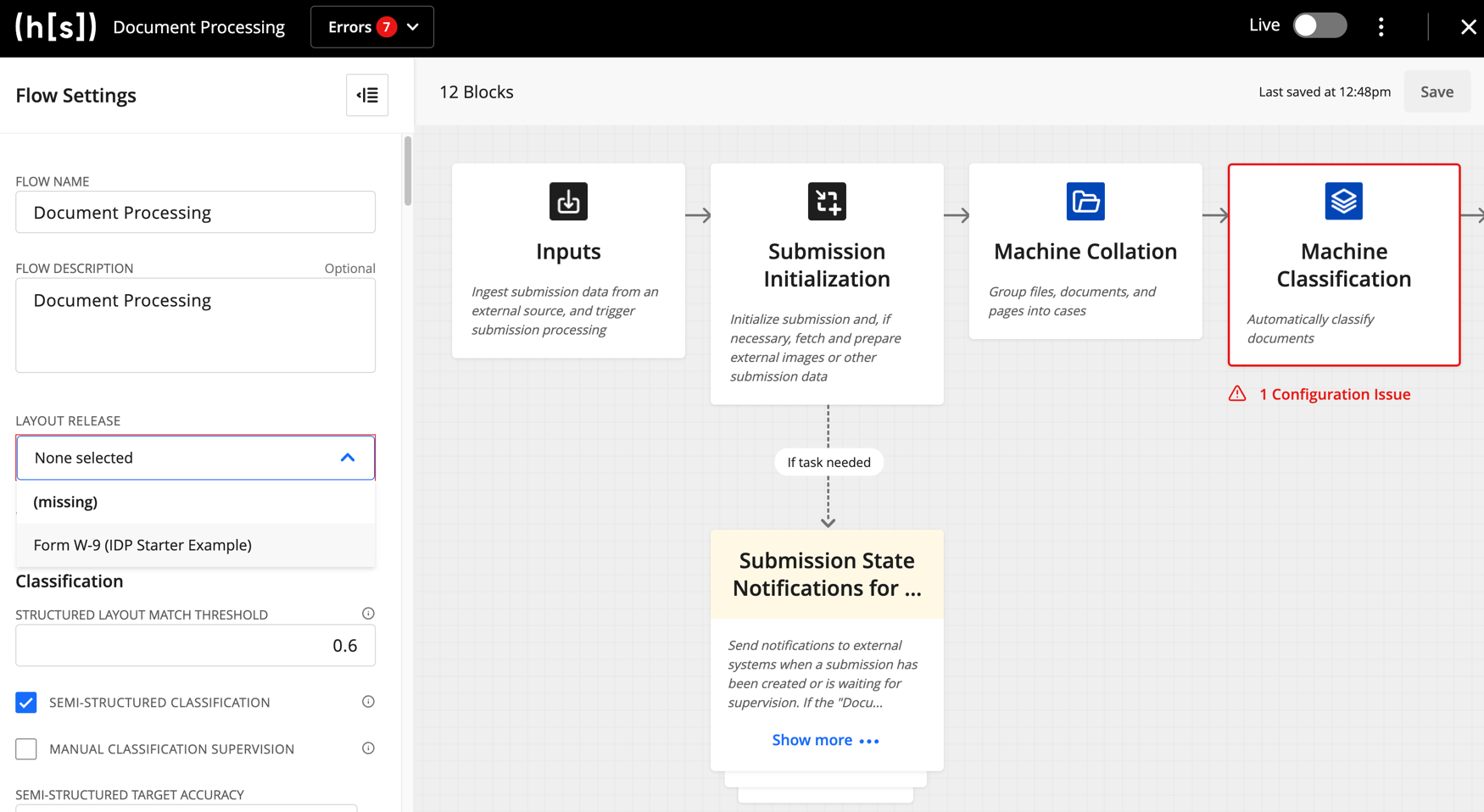
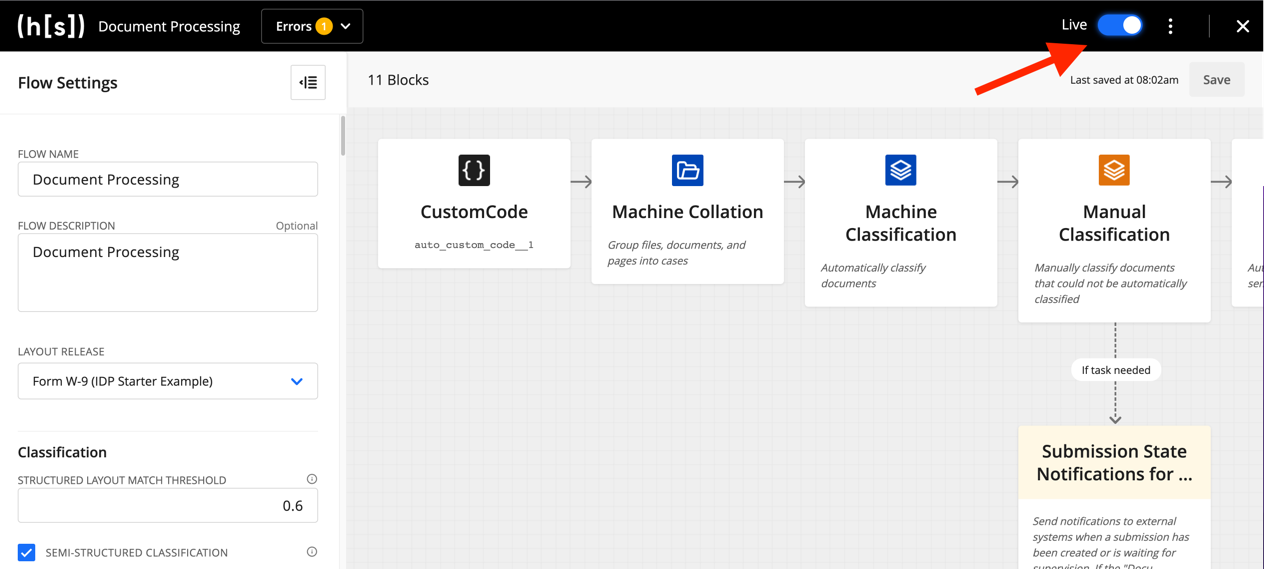
Set your flow’s status to “Live.” Documents can only be submitted to “Live” flows.
Go to
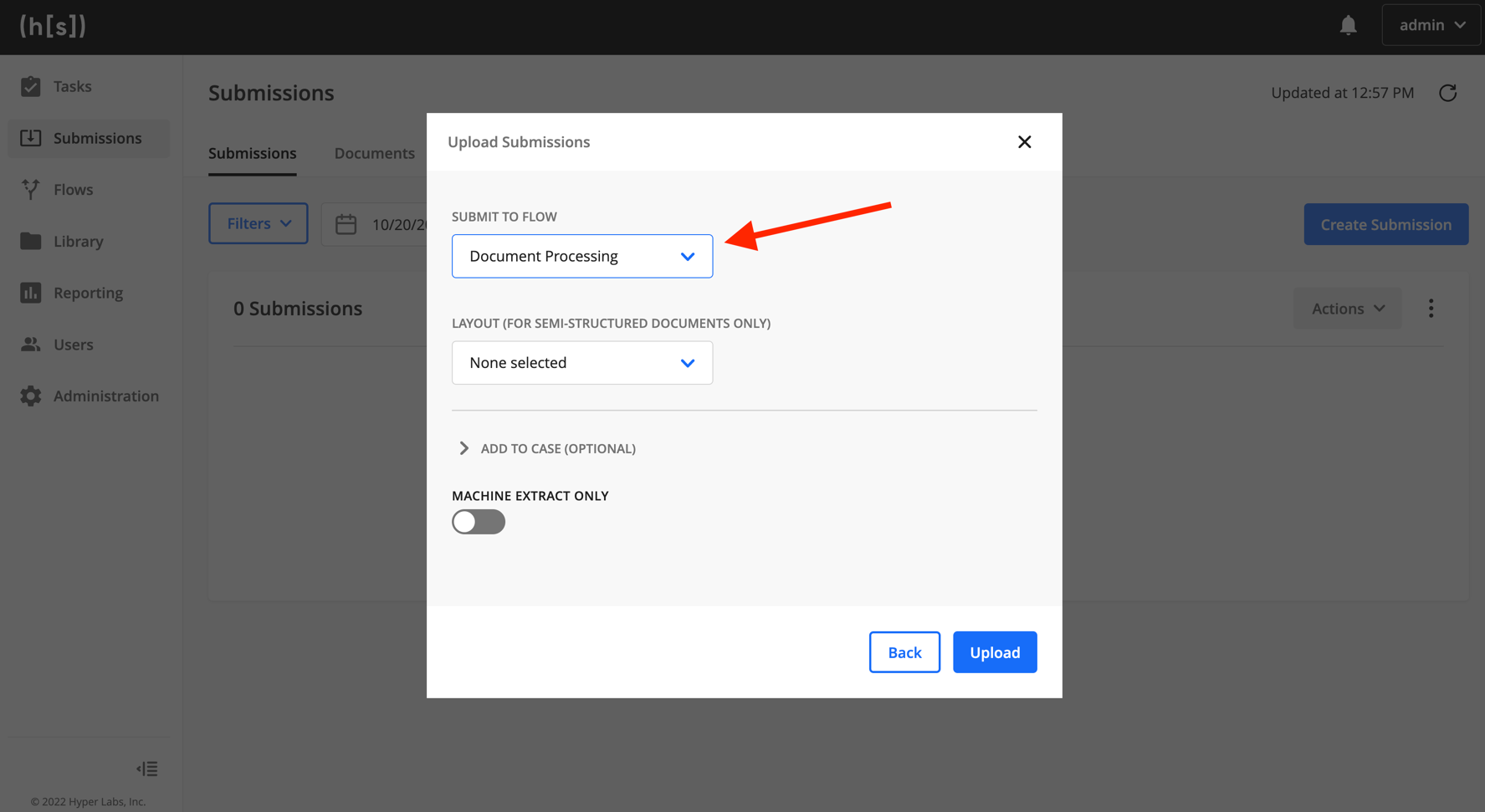
https://{hyperscience-url}/submissionsand click Create Submission. Upload theform-w9-sample.pngsample document. Finally, select IDP Starter Flow as the flow to submit to. You should see that the submission was created - it may take a few minutes to process.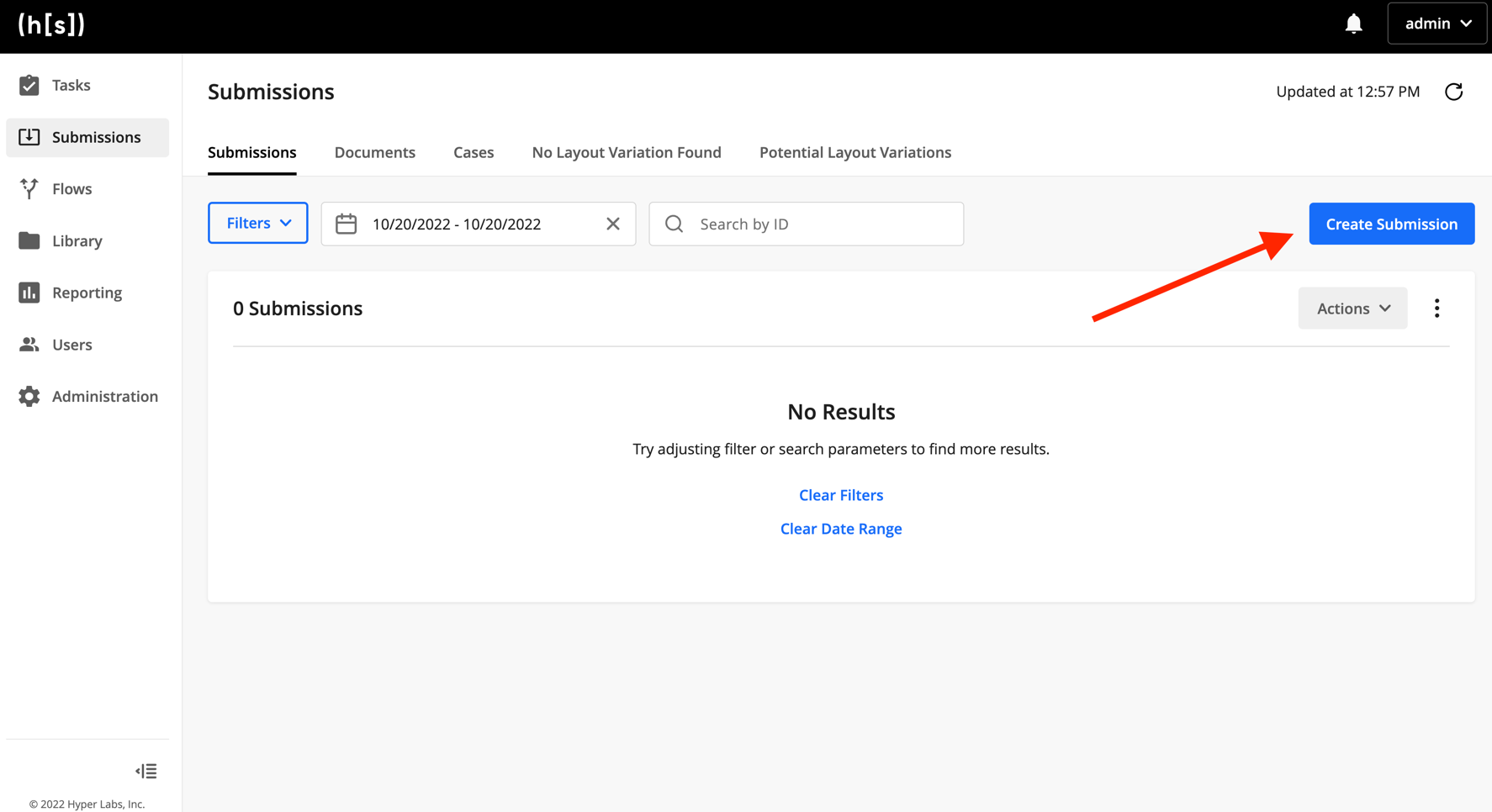
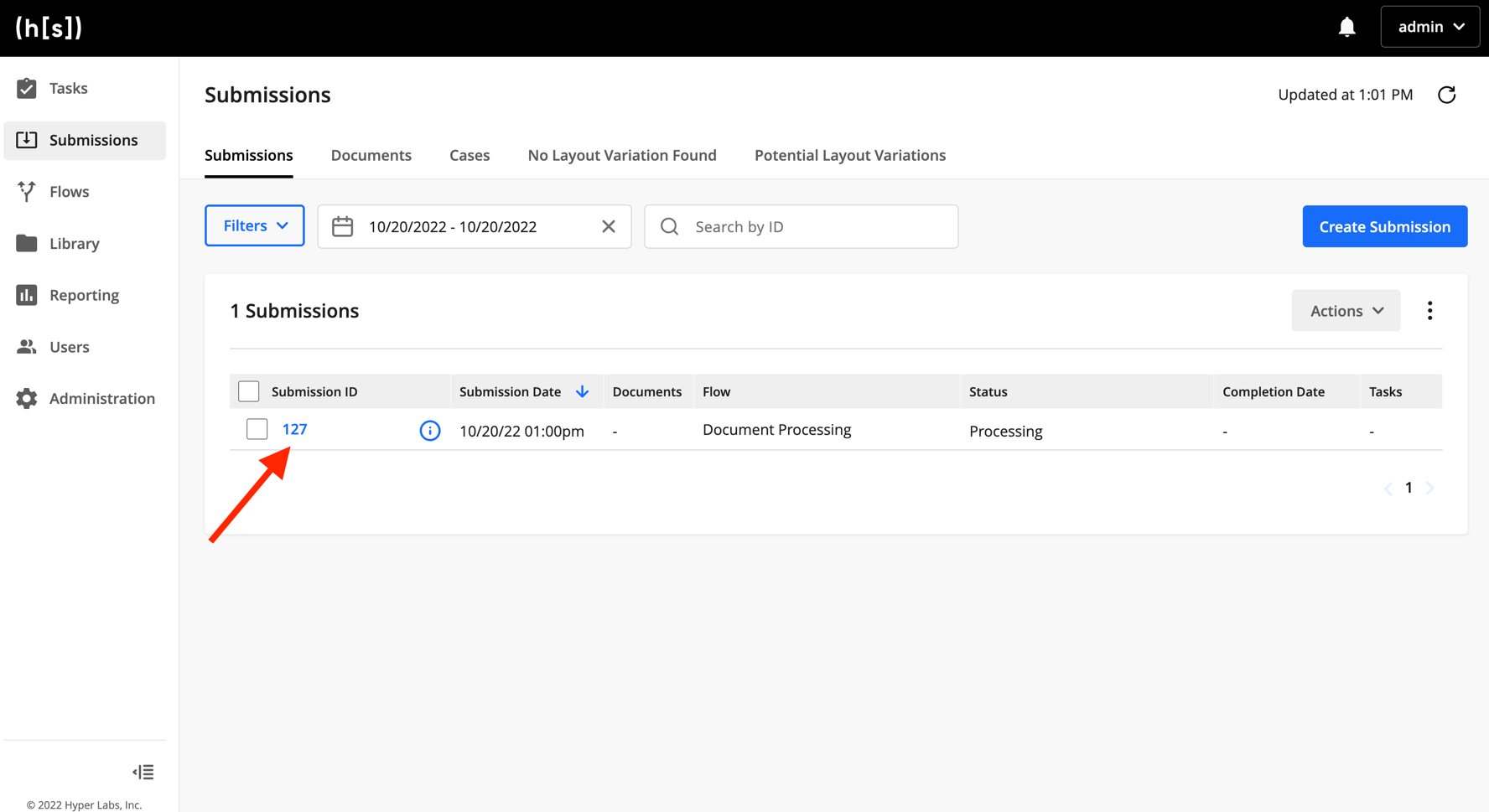
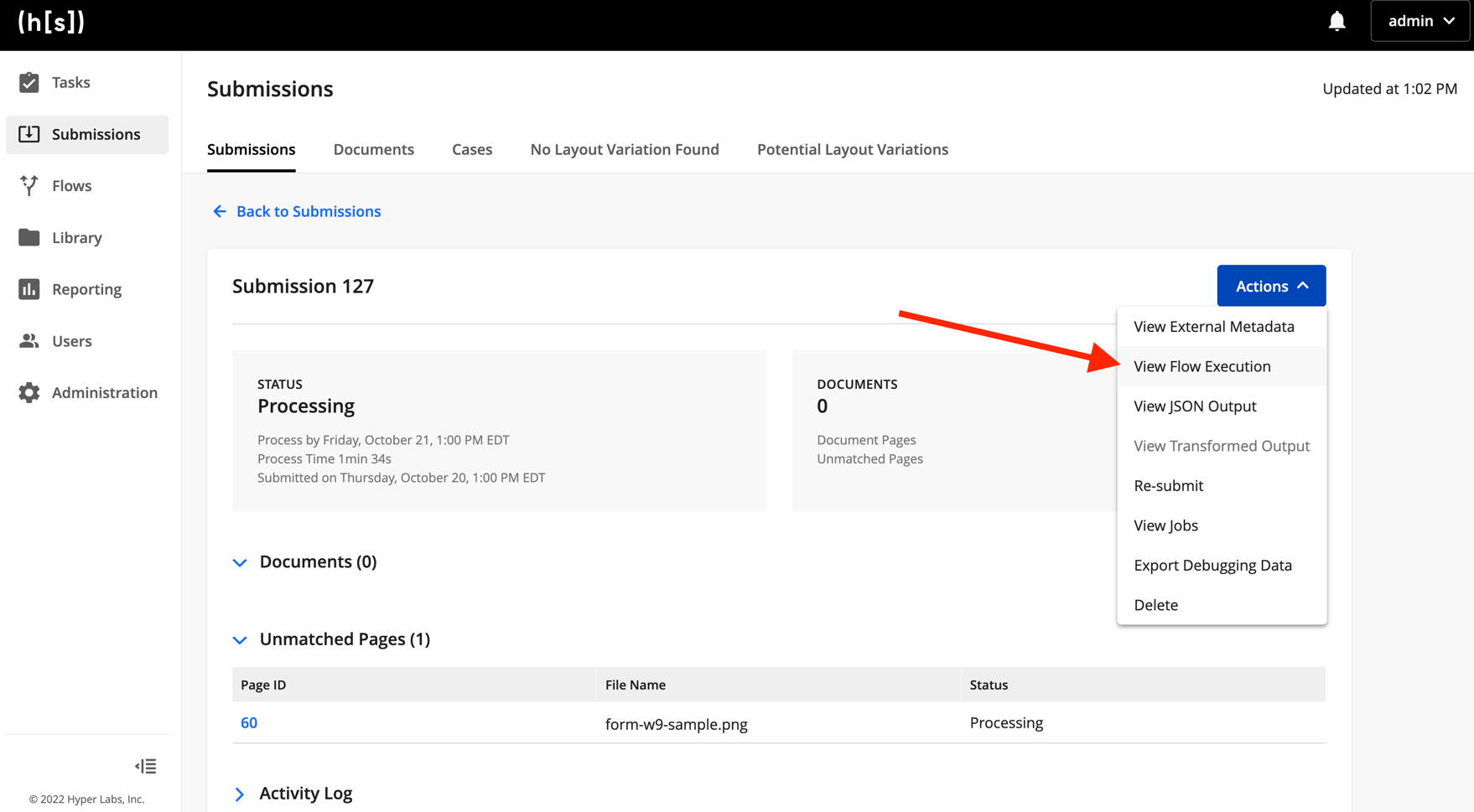
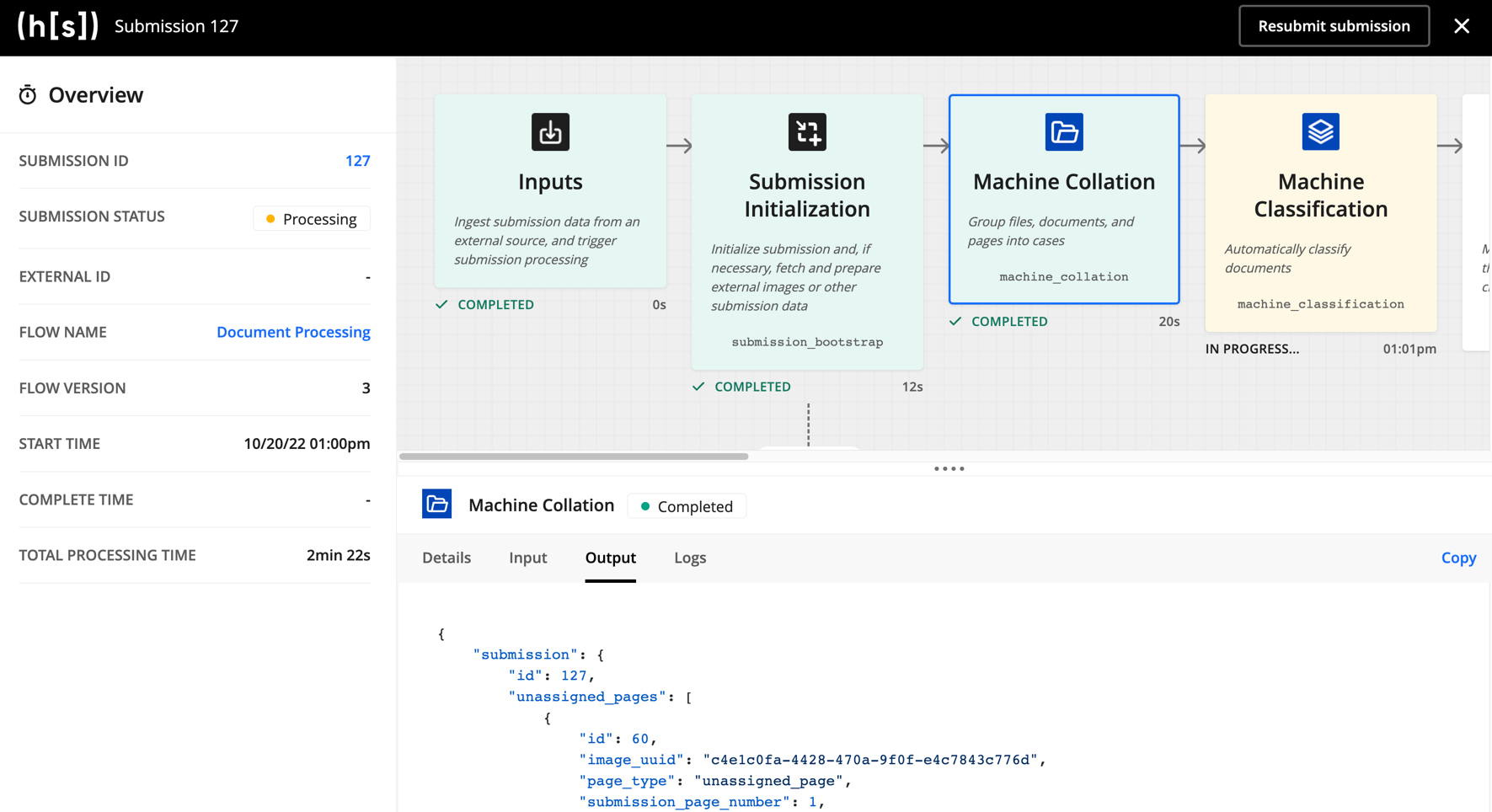
Now we can use our testing and debugging tools to better understand how your flow processed those documents. Click on the completed submission’s ID, then click Actions and select View Flow Run. If you used the provided IDP Starter Flow and sample document, you should see that the document processed without error.
Troubleshooting flow runs
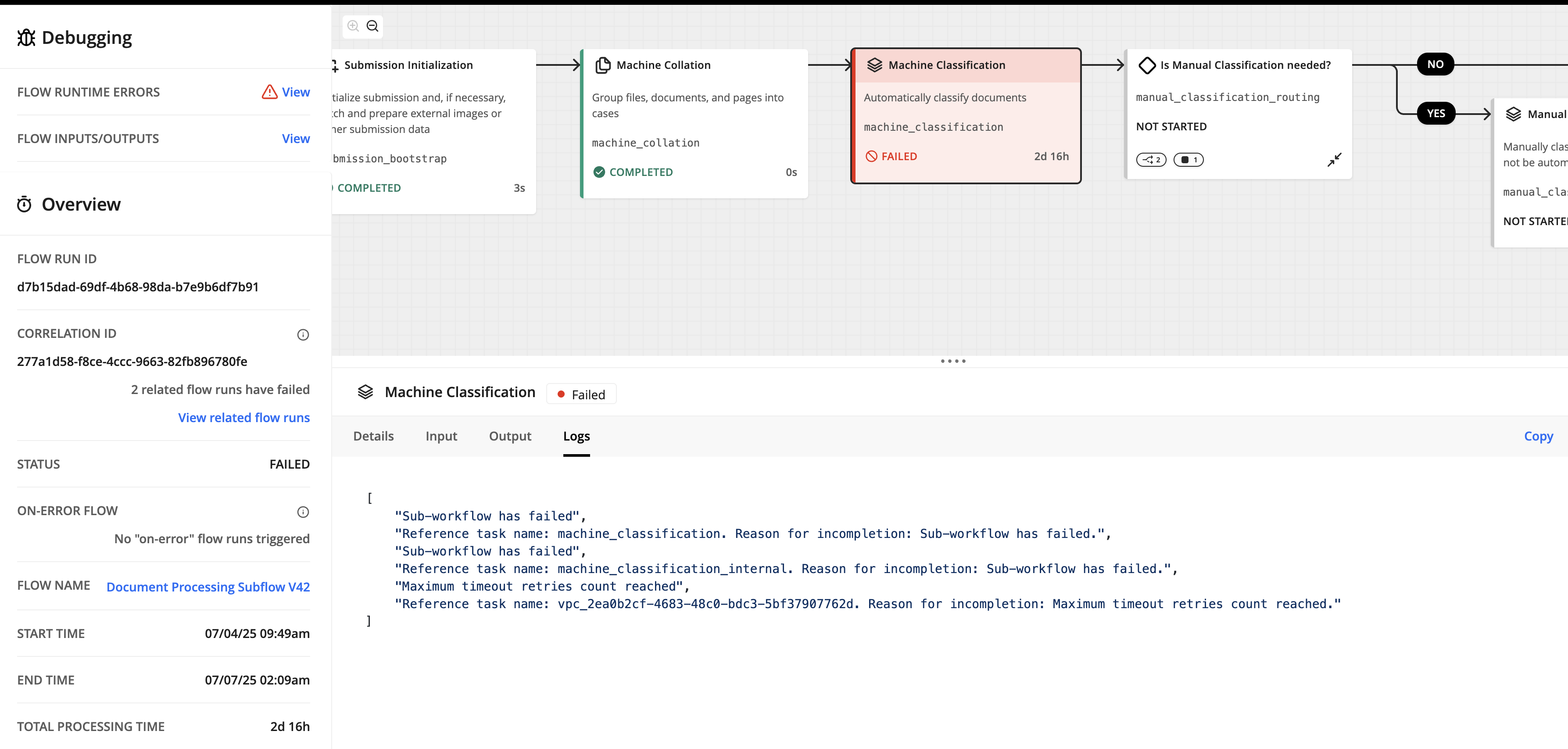
If errors occur in the flow, you can use the information on the Flow Run page to troubleshoot them. To learn more about the Flow Run page, see Testing and Debugging Flows in our application documentation.
Output Wrapping Mode
By default, a code block’s runtime output is wrapped under a top-level result key (e.g. {"result": "code_block_output"}).
The SDK hides this - block.output() already resolves through the result key for you.
Starting with Hyperscience v43.2, you can opt out of this wrapping so blocks emit their return
value directly. The mode is a single, global setting configured
through the HS_CODE_BLOCK_OUTPUT_WRAPPING_MODE environment variable (result or no_wrapping) -
it cannot be set per block. When enabled it applies uniformly to every code, Foreach and Routing
block in the flow, and each block’s output() auto-resolves to the correct shape, without requiring any arguments.
It applies to the following blocks - see each one’s docs for further details:
PythonBlockandCodeBlock- applies to their output directly.Foreach- applies to its aggregate list output (and, via the same global mode, to each item produced by the template block).Routing- its output is the output of the executed branch, therefore inheriting this behavior from the code blocks.
Setting the mode via the environment variable
Enabling a mode requires also declaring the target platform via HS_PLATFORM_TARGET_VERSION; the
SDK validates it is 43.2 or later and raises an error otherwise.
As an environment default (profile file) - exporting the variables from a shell profile makes the
mode the default for every future shell session, applied automatically to every render/bundle. On
zsh, add to ~/.zprofile (use ~/.bash_profile for bash):
# ~/.zprofile - sets the wrapping mode as the environment default for all future shells
export HS_CODE_BLOCK_OUTPUT_WRAPPING_MODE=no_wrapping
export HS_PLATFORM_TARGET_VERSION=43.2
Inline for a single command - prefix a single invocation to apply the mode only there, leaving your shell environment untouched. When rendering a flow file directly:
HS_CODE_BLOCK_OUTPUT_WRAPPING_MODE=no_wrapping HS_PLATFORM_TARGET_VERSION=43.2 \
    python my_flow.py my_flow.json
Or when bundling one or more flows with the CLI:
HS_CODE_BLOCK_OUTPUT_WRAPPING_MODE=no_wrapping HS_PLATFORM_TARGET_VERSION=43.2 \
    hs-flows bundle my_flow.py -o my_flow.zip
Additionally, if you are in a shell with already set environment variables, you can override them inline for each call. For example, this will reset the wrapping mode to the default, allowing the flow to be compatible with earlier platform versions:
HS_CODE_BLOCK_OUTPUT_WRAPPING_MODE= hs-flows bundle my_flow.py -o my_flow.zip